_edited.jpg)
BLINK — LED Matrix Intro for Arduino UNO Q
INTRO — What you’ll build
A looping LED matrix demo for the Arduino UNO Q (8×13 blue LED matrix). The demo shows:
Arduino logo (2 s)
Scrolling “MICROMAKER LABS”
Scrolling “INTRODUCING UNO Q”
Full-screen blink (1 s interval) for 10 s
Animated shades (10 s)
All elements run at maximum brightness by using the library’s 8-bit grayscale (0–255). The sequence loops continuously.
Requirements
Arduino UNO Q (official board).
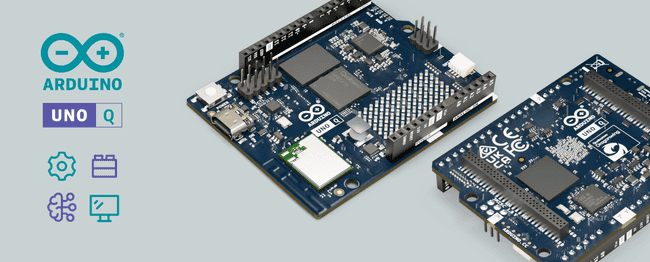

Arduino App (App Lab recommended) or Arduino IDE supporting UNO Q (FQBN: arduino:zephyr:unoq).

Library: Arduino_LED_Matrix (the UNO Q examples use this). Make sure Arduino_LED_Matrix is installed in your Arduino App or added automatically by examples.
USB cable for UNO Q.
Windows / macOS / Linux with Arduino App Lab installed (or the Arduino App online).
Optional: button or potentiometer (if you later want to add controls).
Files you’ll create
fonts.h — 5×7 font for A–Z + space
sketch.ino — main sketch
1. fonts.h
Create a file named fonts.h in the same sketch and paste this exact code:
// fonts.h
// 5x7 capital-letter font for 8x13 LED matrix
#ifndef MICROMAKER_FONTS_H
#define MICROMAKER_FONTS_H

#include <Arduino.h>

static const uint8_t FONT_5x7[27][8] = {
  {0b01110,0b10001,0b10001,0b11111,0b10001,0b10001,0b10001,0b00000}, // A
  {0b11110,0b10001,0b10001,0b11110,0b10001,0b10001,0b11110,0b00000}, // B
  {0b01110,0b10001,0b10000,0b10000,0b10000,0b10001,0b01110,0b00000}, // C
  {0b11110,0b10001,0b10001,0b10001,0b10001,0b10001,0b11110,0b00000}, // D
  {0b11111,0b10000,0b10000,0b11110,0b10000,0b10000,0b11111,0b00000}, // E
  {0b11111,0b10000,0b10000,0b11110,0b10000,0b10000,0b10000,0b00000}, // F
  {0b01110,0b10001,0b10000,0b10111,0b10001,0b10001,0b01110,0b00000}, // G
  {0b10001,0b10001,0b10001,0b11111,0b10001,0b10001,0b10001,0b00000}, // H
  {0b01110,0b00100,0b00100,0b00100,0b00100,0b00100,0b01110,0b00000}, // I
  {0b00111,0b00010,0b00010,0b00010,0b10010,0b10010,0b01100,0b00000}, // J
  {0b10001,0b10010,0b10100,0b11000,0b10100,0b10010,0b10001,0b00000}, // K
  {0b10000,0b10000,0b10000,0b10000,0b10000,0b10000,0b11111,0b00000}, // L
  {0b10001,0b11011,0b10101,0b10101,0b10001,0b10001,0b10001,0b00000}, // M
  {0b10001,0b11001,0b10101,0b10011,0b10001,0b10001,0b10001,0b00000}, // N
  {0b01110,0b10001,0b10001,0b10001,0b10001,0b10001,0b01110,0b00000}, // O
  {0b11110,0b10001,0b10001,0b11110,0b10000,0b10000,0b10000,0b00000}, // P
  {0b01110,0b10001,0b10001,0b10001,0b10101,0b10010,0b01101,0b00000}, // Q
  {0b11110,0b10001,0b10001,0b11110,0b10100,0b10010,0b10001,0b00000}, // R
  {0b01111,0b10000,0b10000,0b01110,0b00001,0b00001,0b11110,0b00000}, // S
  {0b11111,0b00100,0b00100,0b00100,0b00100,0b00100,0b00100,0b00000}, // T
  {0b10001,0b10001,0b10001,0b10001,0b10001,0b10001,0b01110,0b00000}, // U
  {0b10001,0b10001,0b10001,0b10001,0b10001,0b01010,0b00100,0b00000}, // V
  {0b10001,0b10001,0b10001,0b10101,0b10101,0b11011,0b10001,0b00000}, // W
  {0b10001,0b10001,0b01010,0b00100,0b01010,0b10001,0b10001,0b00000}, // X
  {0b10001,0b10001,0b01010,0b00100,0b00100,0b00100,0b00100,0b00000}, // Y
  {0b11111,0b00001,0b00010,0b00100,0b01000,0b10000,0b11111,0b00000}, // Z
  {0b00000,0b00000,0b00000,0b00000,0b00000,0b00000,0b00000,0b00000}  // SPACE
};

#endif // MICROMAKER_FONTS_H
2. sketch.ino (final loop, full-brightness)
Create sketch.ino and paste this:
// sketch.ino — FULL LOOP, ALL ELEMENTS AT FULL BRIGHTNESS
#include <Arduino_LED_Matrix.h>
#include "fonts.h"

Arduino_LED_Matrix matrix;

const uint8_t ROWS = 8;
const uint8_t COLS = 13;
const unsigned long SCROLL_STEP_MS = 80;

uint8_t logo[104] = {
    0,0,0,0,0,0,0,0,0,0,0,0,0,
    0,0,1,1,1,0,0,0,1,1,1,0,0,
    0,1,0,0,0,1,0,1,0,0,0,1,0,
    1,0,0,0,0,0,1,0,0,1,0,0,1,
    1,0,1,1,1,0,1,0,1,1,1,0,1,
    1,0,0,0,0,0,1,0,0,1,0,0,1,
    0,1,0,0,0,1,0,1,0,0,0,1,0,
    0,0,1,1,1,0,0,0,1,1,1,0,0
};

// Build columns for text: returns allocated array (caller free)
uint8_t* buildColumnsForText(const char* text, int &outCols) {
  int len = strlen(text);
  outCols = len * 6;
  uint8_t *cols = (uint8_t*) malloc(outCols);
  if (!cols) { outCols = 0; return nullptr; }
  int idx = 0;
  for (int i=0;i<len;i++) {
    char ch = text[i];
    if (ch >= 'a' && ch <= 'z') ch = ch - 'a' + 'A';
    int fi = 26;
    if (ch >= 'A' && ch <= 'Z') fi = ch - 'A';
    for (int col=0; col<5; col++) {
      uint8_t columnByte = 0;
      for (int r=0; r<8; r++) {
        uint8_t rowBits = FONT_5x7[fi][r] & 0x1F;
        uint8_t bit = (rowBits >> (4 - col)) & 1;
        columnByte |= (bit << r);
      }
      cols[idx++] = columnByte;
    }
    cols[idx++] = 0x00;
  }
  outCols = idx;
  return cols;
}

void drawFrameFromColumnsAs8bit(uint8_t *columns, int totalCols, int offset) {
  uint8_t frame[ROWS * COLS];
  for (int r=0; r<ROWS; r++) {
    for (int c=0; c<COLS; c++) {
      int colIndex = offset + c;
      uint8_t outVal = 0;
      if (columns && colIndex >= 0 && colIndex < totalCols) {
        uint8_t bit = (columns[colIndex] >> r) & 1;
        outVal = bit ? 255 : 0;
      } else {
        outVal = 0;
      }
      frame[r * COLS + c] = outVal;
    }
  }
  matrix.draw(frame);
}

void scrollTextFullBright(const char* text) {
  int totalCols = 0;
  uint8_t *cols = buildColumnsForText(text, totalCols);
  if (!cols || totalCols == 0) { if (cols) free(cols); return; }
  matrix.setGrayscaleBits(8);
  for (int offset = - (int)COLS; offset <= totalCols; offset++) {
    drawFrameFromColumnsAs8bit(cols, totalCols, offset);
    delay(SCROLL_STEP_MS);
  }
  free(cols);
}

void showLogoFullBright(unsigned long ms) {
  uint8_t frame[ROWS * COLS];
  for (int i=0;i<ROWS*COLS;i++) frame[i] = logo[i] ? 255 : 0;
  matrix.setGrayscaleBits(8);
  matrix.draw(frame);
  delay(ms);
}

void blinkFullScreenFullBright(unsigned long durationMs, unsigned long intervalMs) {
  matrix.setGrayscaleBits(8);
  unsigned long start = millis();
  bool on = false;
  uint8_t frame[ROWS * COLS];
  while (millis() - start < durationMs) {
    on = !on;
    uint8_t v = on ? 255 : 0;
    for (int i=0;i<ROWS*COLS;i++) frame[i] = v;
    matrix.draw(frame);
    unsigned long t0 = millis();
    while (millis() - t0 < intervalMs) { delay(5); }
  }
}

void animatedShades(unsigned long durationMs, unsigned int frameMs) {
  matrix.setGrayscaleBits(8);
  unsigned long start = millis();
  unsigned long step = 0;
  uint8_t frame[ROWS * COLS];
  while (millis() - start < durationMs) {
    for (int r = 0; r < ROWS; r++) {
      for (int c = 0; c < COLS; c++) {
        int val = ( (c * 24) + (step * 12) + (r * 6) ) & 0xFF;
        frame[r * COLS + c] = (uint8_t)val;
      }
    }
    matrix.draw(frame);
    step++;
    unsigned long t0 = millis();
    while (millis() - t0 < frameMs) delay(5);
  }
}

void clearDisplay() {
  matrix.setGrayscaleBits(8);
  uint8_t blank[ROWS * COLS];
  memset(blank, 0, sizeof(blank));
  matrix.draw(blank);
}

void runSequence() {
  showLogoFullBright(2000);
  scrollTextFullBright("MICROMAKER LABS");
  delay(150);
  scrollTextFullBright("INTRODUCING UNO Q");
  delay(150);
  blinkFullScreenFullBright(10000, 1000);
  animatedShades(10000, 40);
  clearDisplay();
  delay(200);
}

void setup() {
  matrix.begin();
  clearDisplay();
}

void loop() {
  runSequence();
}
How to add the files and upload (step-by-step for Arduino App Lab / Arduino App)
Open Arduino App (App Lab). Click Create → New Sketch and name it BLINK.
Add two files in that sketch:
sketch.ino (paste the .ino code).
fonts.h (paste the header).Use the App Lab “Add File” button or the editor file menu.
Install / ensure library: Arduino_LED_Matrix must be available. If not:
In App Lab, open Libraries → Include Library → search for Arduino_LED_Matrix or import vendor-provided library.
The UNO Q board support (zephyr package) may add it automatically.
Select Board / Port: In App Lab, set board to Arduino UNO Q (FQBN: arduino:zephyr:unoq) and connect board to USB. If no port appears, check cable/driver.
Compile: Click Verify/Compile. If you see an error about draw() requiring non-const pointer, the sketch mitigates it by always passing mutable buffers to matrix.draw() — so compilation should succeed. If your environment shows libraries automatically added, accept them.
Upload: Click Upload. The LED matrix should begin running the sequence and loop forever.
Debugging: If upload fails, note the exact error text and restart App Lab. Also try switching USB ports or cable. Confirm the UNO Q is powered.
Wiring / Hardware notes
No external wiring required — the onboard 8×13 matrix is driven by the UNO Q’s STM32. Just connect the board to your computer via USB.
If you later add a button: wire one side to a digital input with pull-down (or use internal pull-up and invert logic).
Explanation: how the code works (quick technical overview)
fonts.h contains a 5×7 font defined row-major: each glyph is 8 rows × 5 bits. The sketch converts rows → column bytes for the matrix (LSB = top row).

Text rendering: buildColumnsForText() produces a run of column bytes (5 columns per char + 1 blank). Scrolling slices a 13-column window and maps each ON bit to 255 to ensure full brightness.
Full brightness: matrix.setGrayscaleBits(8) sets the matrix to accept 8-bit brightness values (0–255). All ON pixels are mapped to 255.

Animated shades: animatedShades() computes per-cell values 0–255 and updates the matrix every frameMs ms to create a smooth gradient animation.

The draw() signature: the UNO Q library expects a uint8_t* (mutable). The sketch always passes mutable arrays (frame buffers) to matrix.draw() to avoid const conversion errors.
Output Video
Troubleshooting (common problems & fixes)
1. Compilation error: invalid conversion from const uint8_t* to uint8_t*Cause: passing a const buffer to matrix.draw() when the library expects uint8_t*.Fix: make sure you compile the provided BLINK.ino which passes mutable frame arrays or casts when necessary. The code above already avoids the error by creating local mutable frames.
2. No board / no port shown
Check USB cable/data capability; try a different cable.
Confirm drivers installed for the UNO Q. Restart Arduino App.
3. Text looks vertically shifted / inverted
The code assumes top row maps to bit0. If your matrix orientation differs, swap bit order (adjust drawFrameFromColumnsAs8bit mapping).
4. Low brightness even after setGrayscaleBits(8)
Confirm power source (USB port provides enough current).
Ensure host doesn’t limit current. Try a powered USB hub.
5. Crashes or out-of-memory
The code uses small buffers (104 bytes). UNO Q has enough RAM; if you add many features, watch heap allocations from malloc() in text builder. Free buffers after use.


Comments