_edited.jpg)
🤖 Meet BOBO 2.0 from PR Tech: Quick Start
Updated: Jan 23

1. Getting Started
When you power on the device, you will see the Boot Sequence:
Animation: An expanding circle wipe effect.
Logo: The text "BOBO 2.0" will appear.
WiFi Sync: The device connects to WiFi to fetch real-time weather and time data.
Home Screen: Once loaded, the device enters the Emo-Pet mode (the eyes).
2. Navigation & Controls
The device uses a single touch sensor (capacitive touch or push button) for all interactions.
Action | Gesture | Function |
Next Page | Single Tap | Cycles through the main screens (Emo -> Clock -> Weather). |
Back / Exit | Single Tap | When inside a sub-menu (like World Clock), this returns you to the main page. |
Brightness | Double Tap | Toggles display brightness between High (Day Mode) and Low (Night Mode). |
Enter Sub-Menu | Long Press | Access deeper details for the current page (e.g., viewing the 3-day forecast). |
Change Mood | Long Press | Specific to Emo Page only. Manually cycles through different emotions. |
3. Main Screens (The "Pages")
The OS has three main pages that rotate automatically every 8 seconds (if you don't touch it).
Page 1: The Emo-Pet (Home)
This is the default screen featuring two animated eyes with an advanced physics engine.
Behavior: The eyes blink, look around (saccades), and react to the environment.
Moods: The expression changes based on real-time weather and temperature:
Happy: Clear sky.
Sad: Rain or Drizzle.
Surprised: Thunderstorms.
Excited: Hot weather (>25°C).
Sleepy: Cold weather (<15°C).
Manual Override: Long-press to cycle through moods manually (Happy, Angry, Love, Suspicious, etc.).


Page 2: Digital Clock
A clean, high-contrast clock display.
Features:
Current Time (12-hour format with AM/PM).
Current Day and Date.
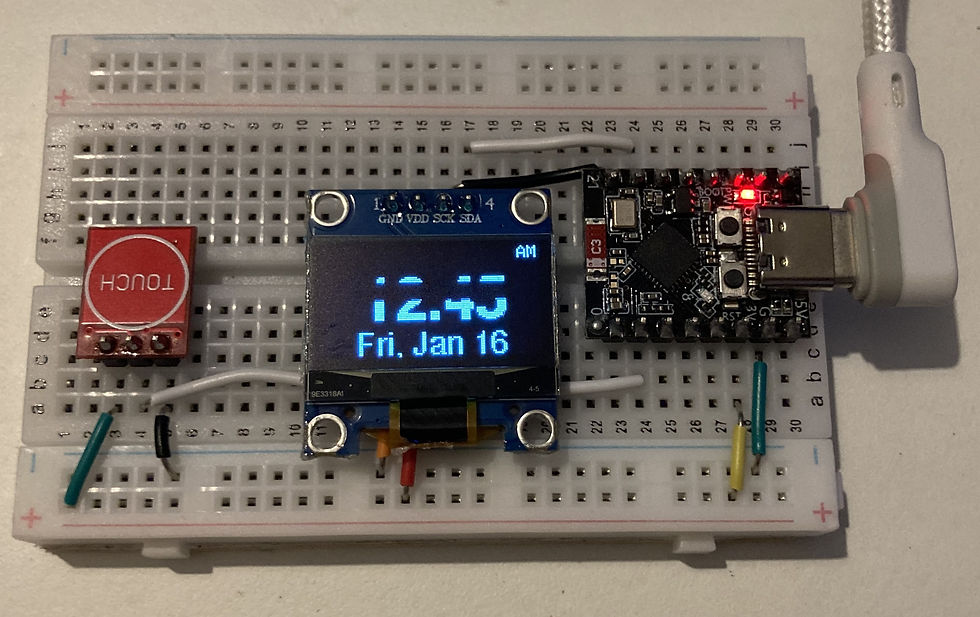
Sub-Menu (Long Press): Opens the World Clock.
Displays UK (London) and Japan (Tokyo) time zones simultaneously.

Page 3: Weather Station
Displays live local weather data for Thrissur, India.
Features:
Big Weather Icon (Sun, Cloud, Rain).
Temperature (Large text).
Humidity percentage.
"Feels Like" temperature.
Short weather description (e.g., "Broken Clouds").

Sub-Menu (Long Press): Opens the 3-Day Forecast.
Shows the predicted weather icon and temperature for the next three days.

4. Special Features
Auto-Dimming
To save power or reduce glare at night, double-tap the sensor. The screen contrast drops to minimum visibility (Value: 1). Double-tap again to restore full brightness (Value: 255).
Smart WiFi & Time Sync
NTP Sync: The clock is always accurate to the second, syncing with internet time servers.
Auto-Recovery: If WiFi is lost, the device will attempt to reconnect while showing a "No WiFi" indicator on the weather page.
Physics Engine
The eyes use a spring-damper physics system.
The Pupil: Lags slightly behind the eye movement, creating a sense of weight and realism.
Blinking: Randomized blink intervals to make the bot feel "alive."
Breathing: The eyes slightly expand and contract in a rhythmic "breathing" motion.
5. Troubleshooting
Screen is dark? You might be in "Dim Mode." Double-tap the sensor.
Time says "Syncing..."? The device is trying to connect to WiFi. Ensure your router is on and the credentials in the code (ssid / password) are correct.
Weather says "Wait..."? Data is being fetched. This usually updates within 10 seconds of booting.
Touch not responding? The touch sensor calibrates on boot. Do not touch the sensor while plugging the device in.
6. Code
Download the text file below and update the necessary fields like Wi-Fi SSID, password, city and country code, OpenWeather secret API key, etc., and change the file extension to .ino if you are using Arduino IDE.


Comments